Get started
The front page and the menu
The menu at the top is the same on every page. Everything is free, and you need no account to try it.
- 1Tools: every tool on one page.
- 2Switch between Norwegian and English at any time.
- 3My CV: build, share and print your CV.
- 4Start here: the test takes about three minutes.
Every screen
The whole guide on one page – good for printing or reading at your own pace.
Get started
-
The front page and the menu
The menu at the top is the same on every page. Everything is free, and you need no account to try it.
- Tools: every tool on one page.
- Switch between Norwegian and English at any time.
- My CV: build, share and print your CV.
- Start here: the test takes about three minutes.
-
All tools
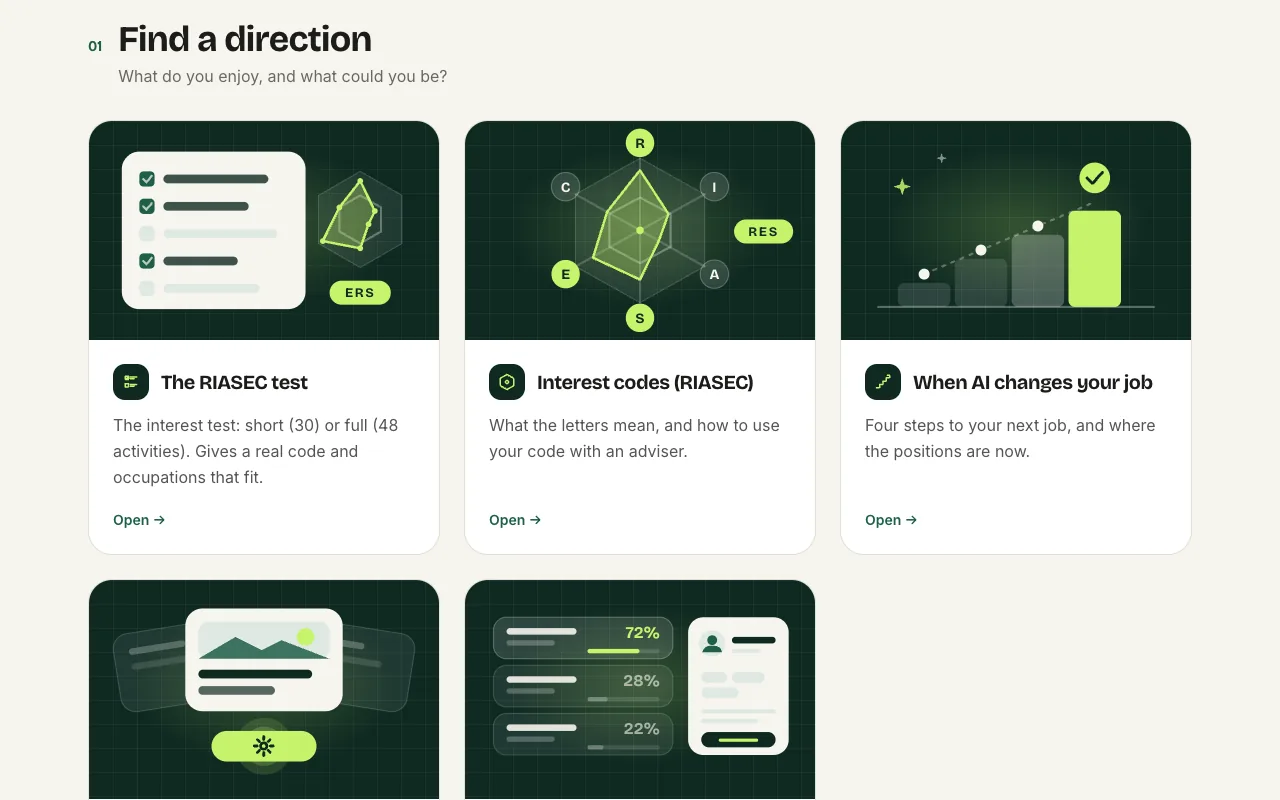
The tools come in three groups: find a direction, know the market and make your CV. Start wherever you like.
- Three groups – from "what do I enjoy?" to a finished CV.
- Not sure of your direction? Start with the RIASEC test.
- Know what you can do? Go straight to the test.
Find a direction
-
The RIASEC test
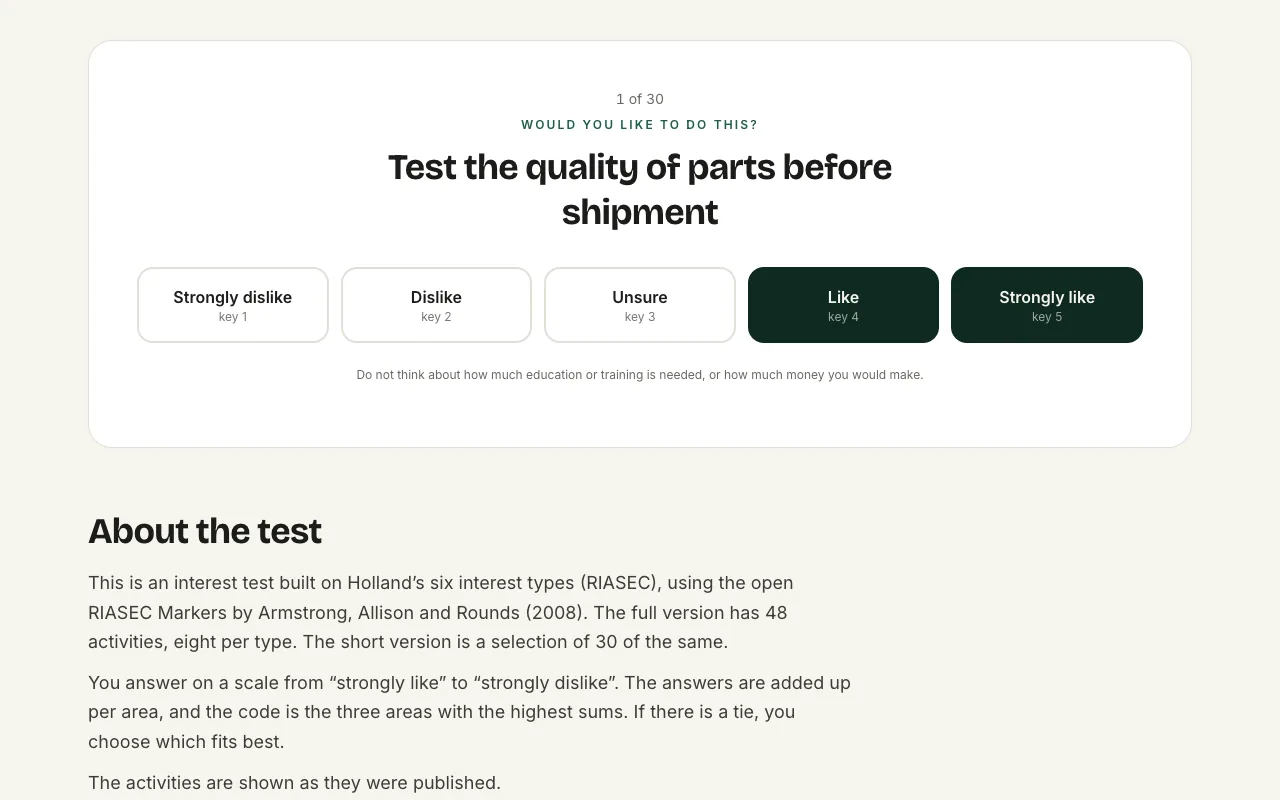
Choose short (30 activities) or full (48). You say how much you would like to do each activity – there are no right answers.
- One activity at a time.
- Would you like it? Press here, or key 5.
- Not for you? Press here, or key 1.
-
The result: your code and occupations that fit
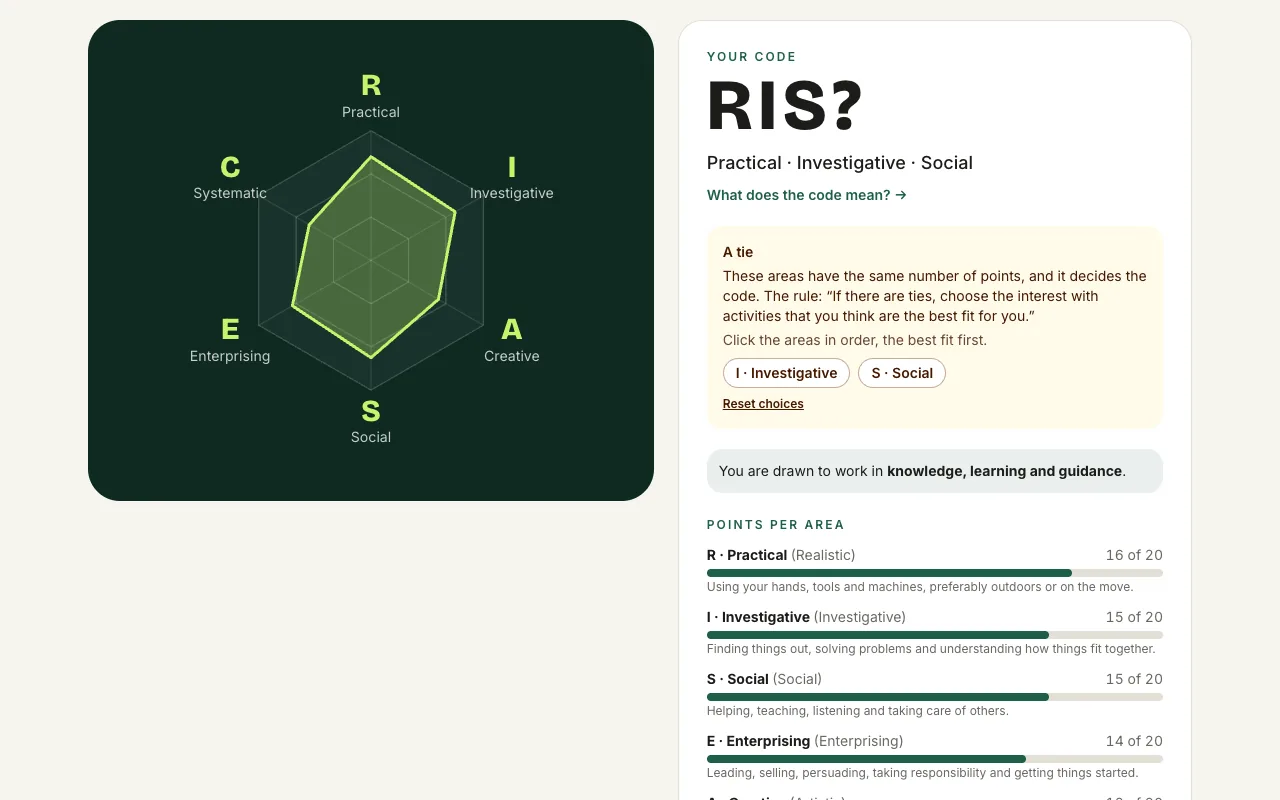
Your answers become a three-letter interest code and occupations from the register that fit – with pay and demand.
- The hexagon shows where your interests lie.
- Your code: the three areas you liked best.
- The points per area – below come occupations that fit, with pay.
-
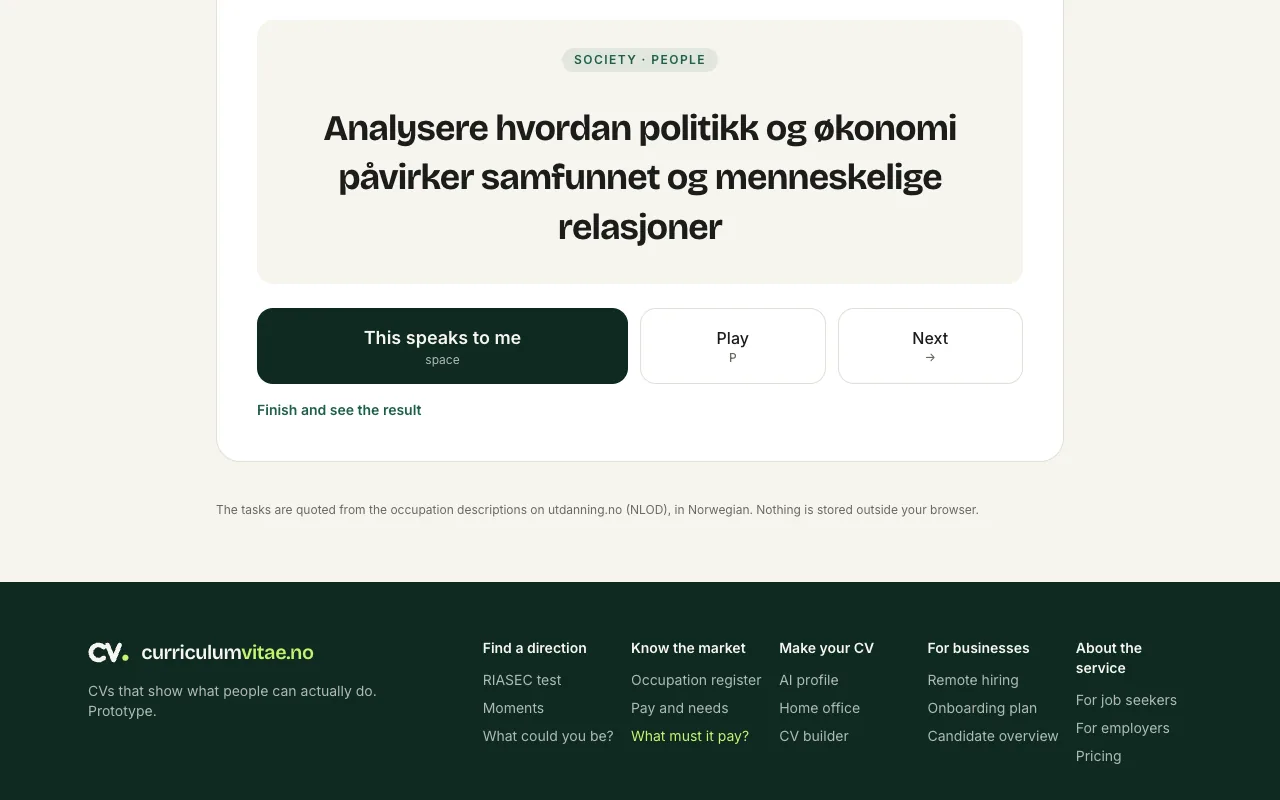
Moments
Real work tasks from hundreds of occupations drift past. Tap when one speaks to you – at the end you see which occupations they came from.
- A real work task. It changes after a few seconds.
- Does it speak to you? Press here, or the space bar.
- Done? See which occupations the tasks came from.
-
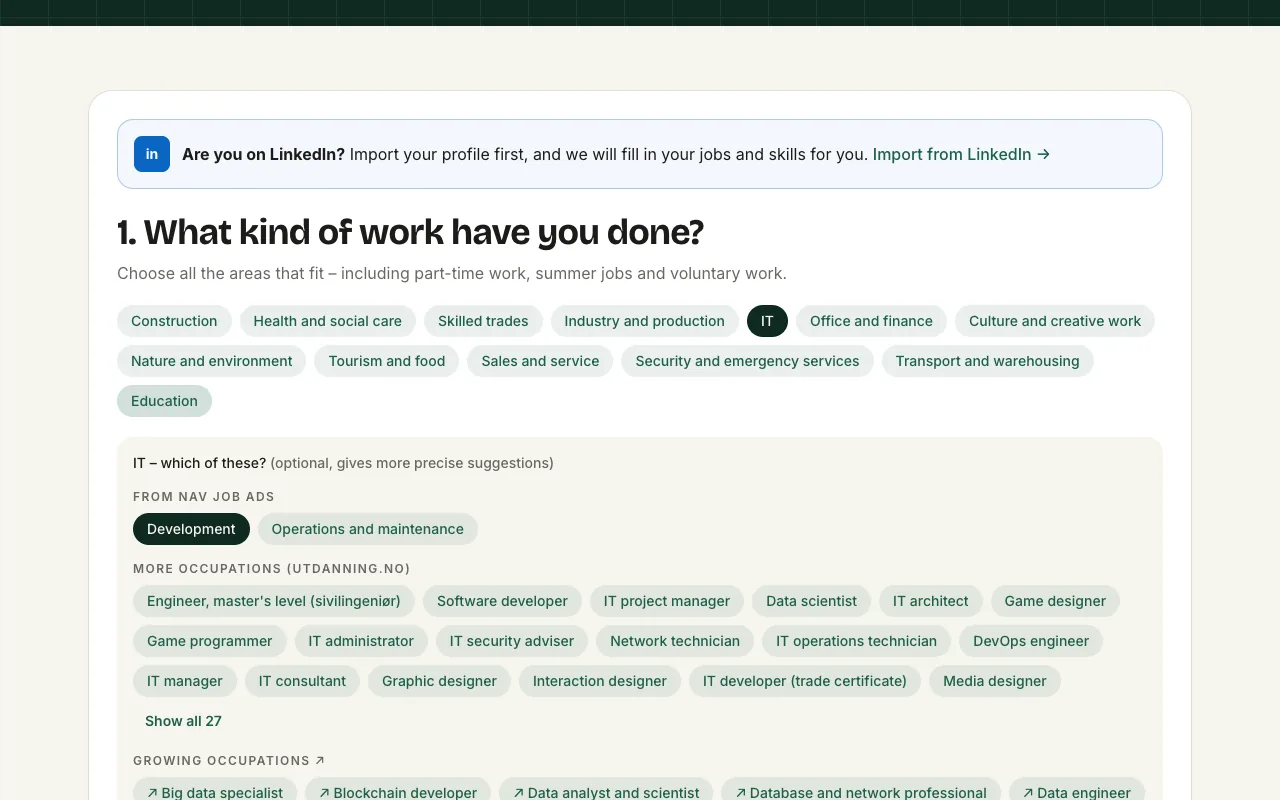
The test, step 1: what you have done
Choose the areas you have worked in – including part-time, summer jobs and volunteering. The more you choose, the better the suggestions.
- On LinkedIn? Import your profile and it is all filled in.
- Choose the areas you have experience in.
- Occupations with data from NAV job ads.
- More occupations from utdanning.no – choose as many as fit.
-
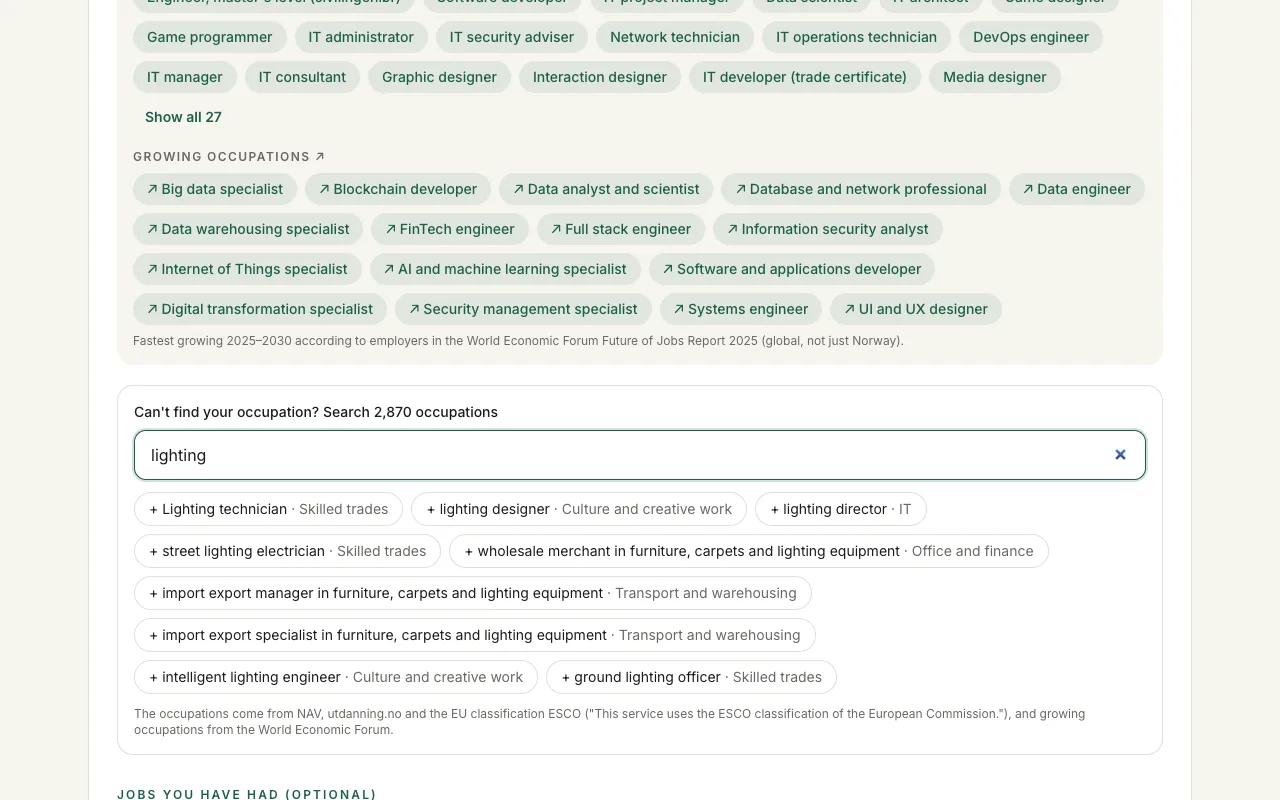
All kinds of occupations – including growing ones
The occupations come from NAV, utdanning.no and the EU classification ESCO. Growing occupations are marked ↗.
- A growing occupation according to the World Economic Forum (2025).
- Can’t find your occupation? Search almost 3,000.
- Tap to add it.
-
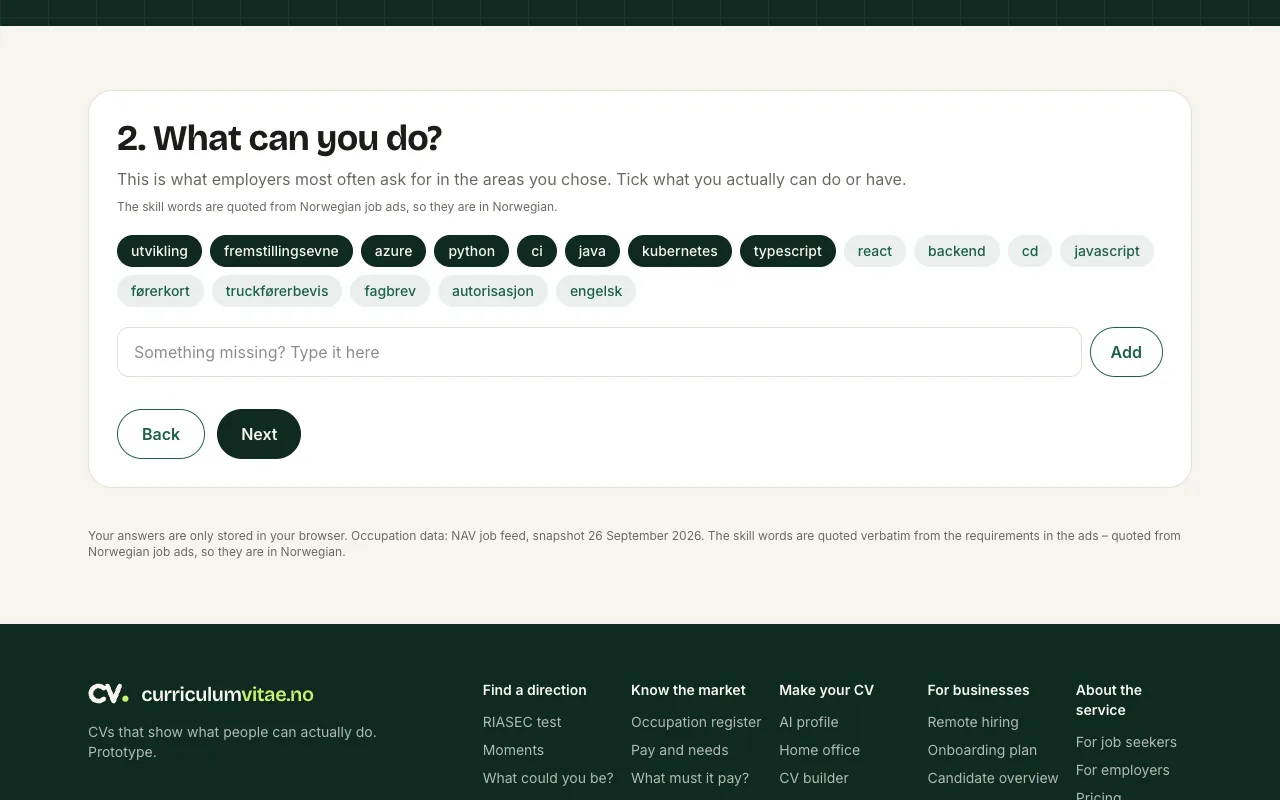
Step 2: what you can do
The skills come from what employers actually ask for in job ads (quoted from Norwegian ads). Tick what you can do.
- Tap what you can do. Dark means selected.
- Something missing? Type it in yourself.
- Move on when you are happy.
-
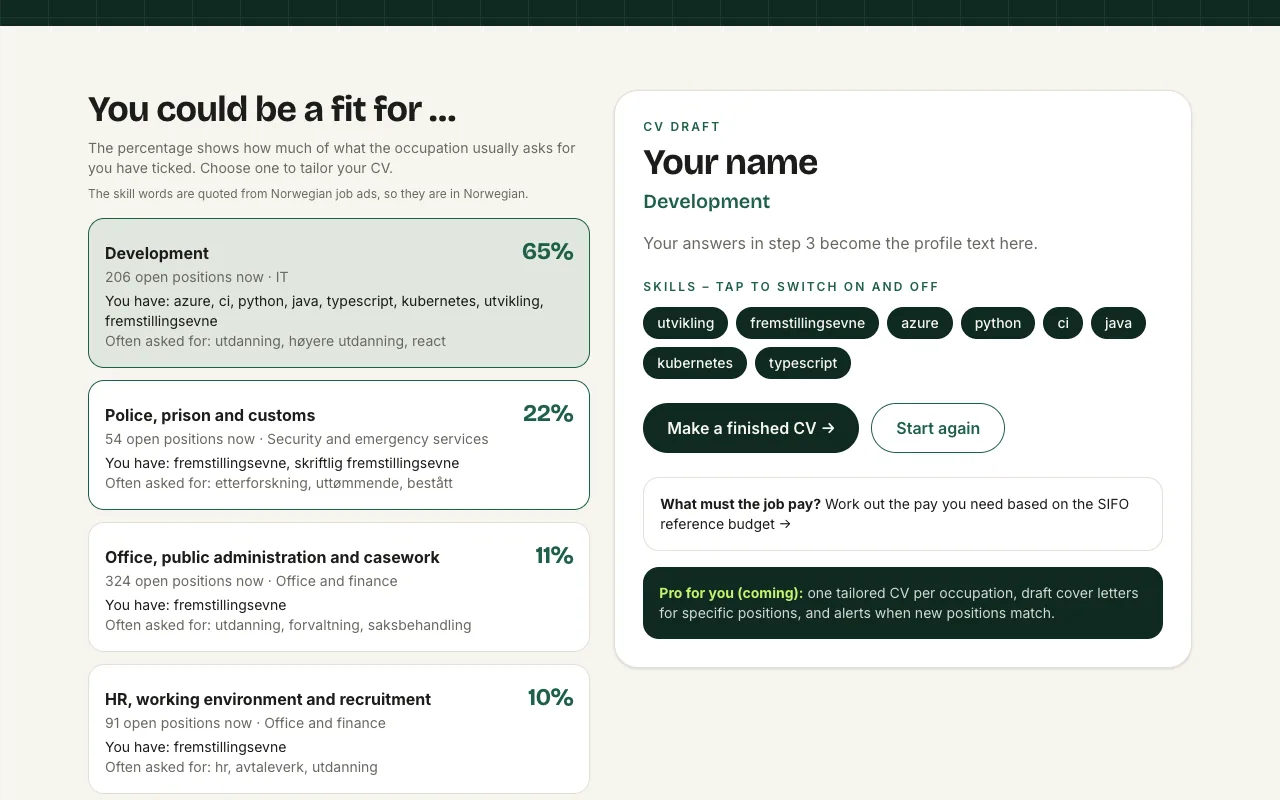
The result: occupations you could fit
You see how much of what the ads ask for you cover, how many positions are open now, and what is often asked for.
- Best match: share of the requirements you cover, and open positions now.
- The CV draft: switch skills on and off with one tap.
-
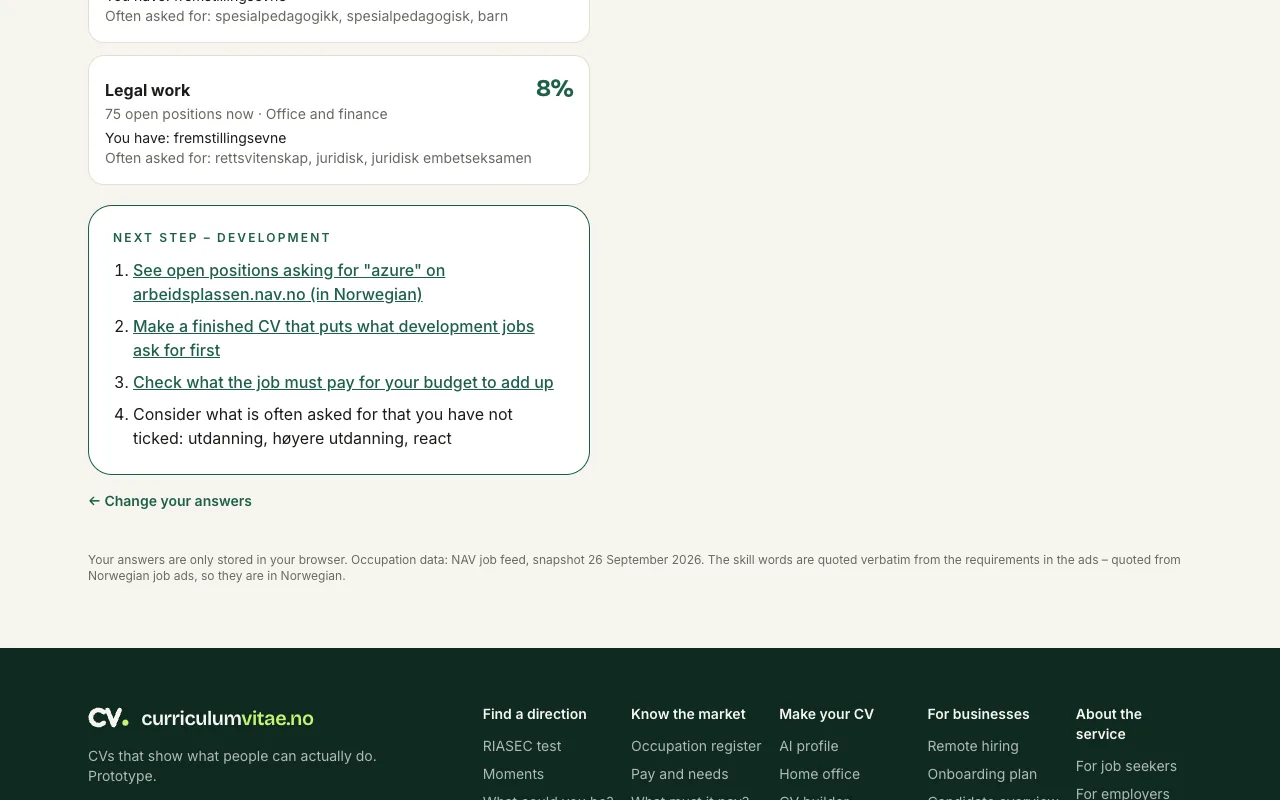
Next steps
The result does not end in a chart, but in things you can do now.
- See open positions at NAV that ask for what you can do.
- Make a finished CV that puts what the occupation asks for first.
- Check whether the pay covers what you need.
Know the market
-
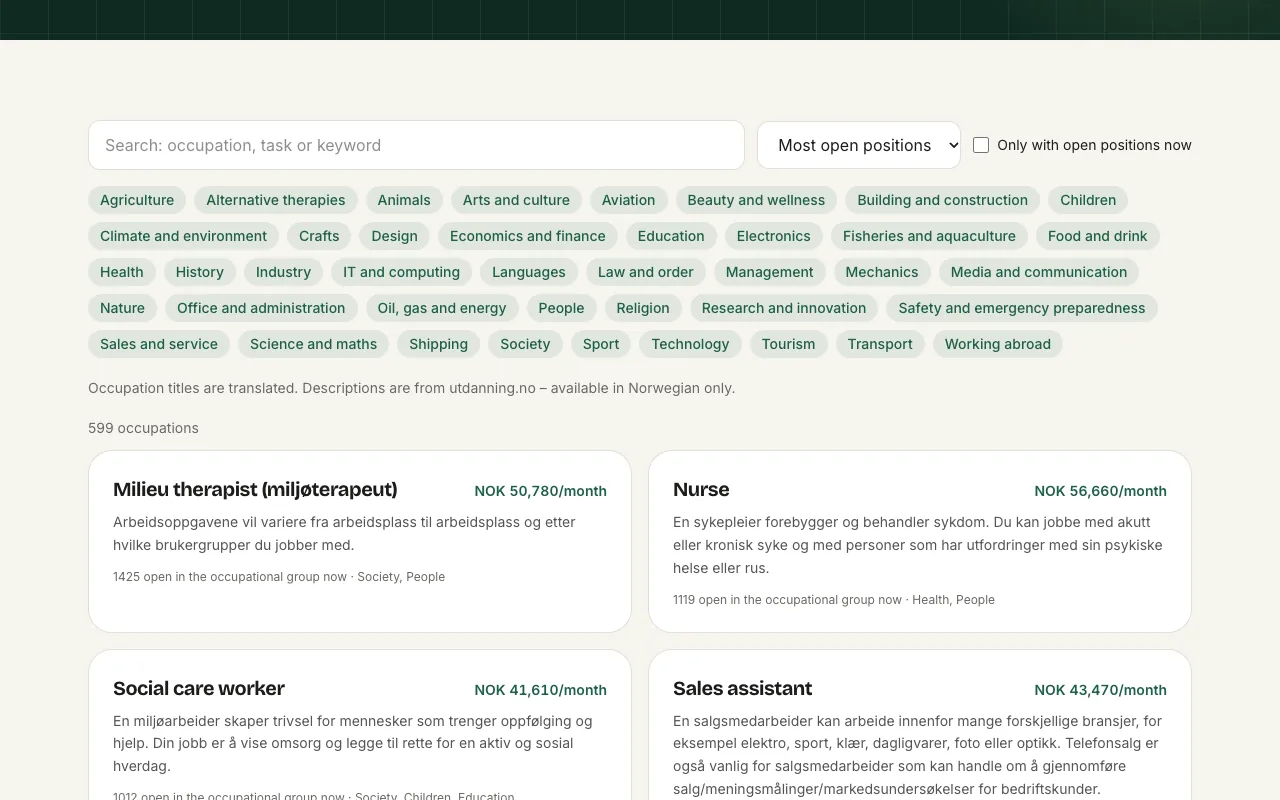
The occupation register
Around 600 occupations: what they involve, what they pay and how many are needed now.
- Search by occupation, task or keyword.
- Filter by what interests you.
- Sort by open positions, pay or alphabet.
- Every occupation shows pay and open positions.
-
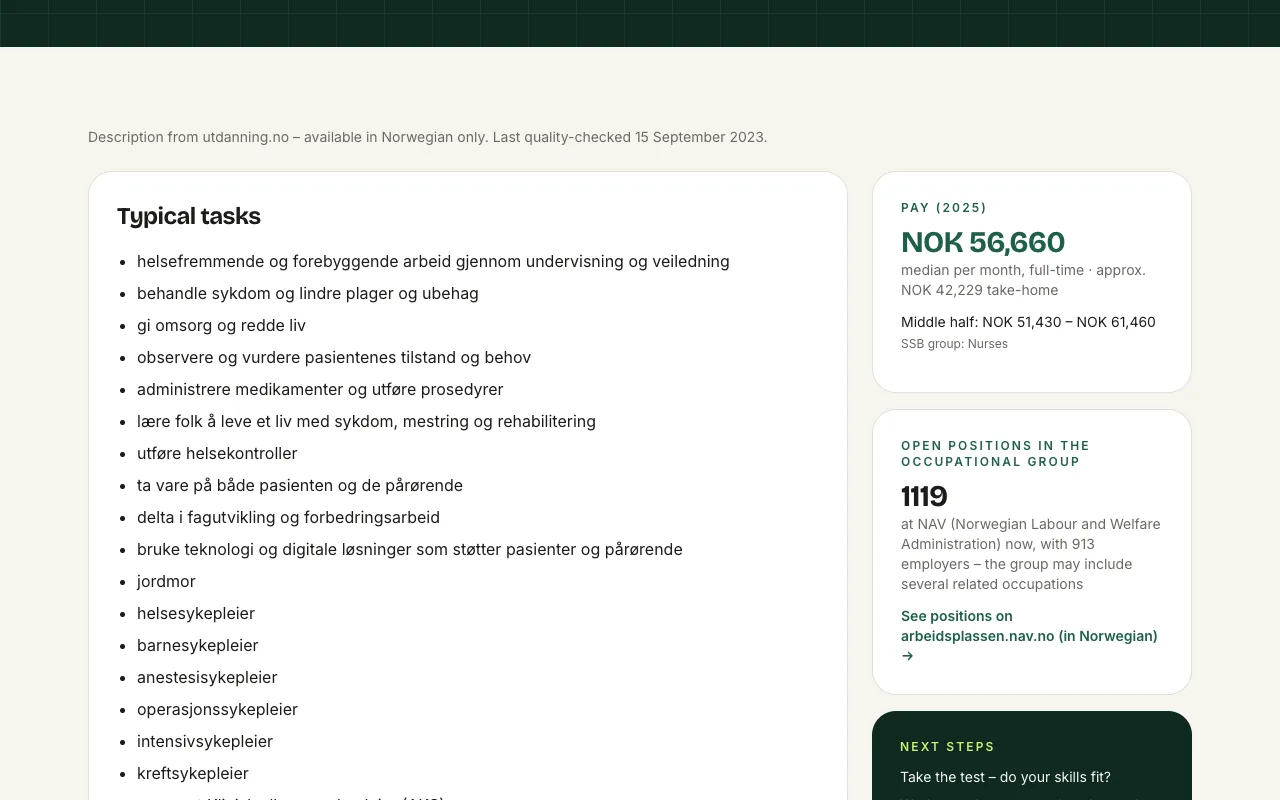
One occupation, in detail
Tasks from utdanning.no (in Norwegian), pay from Statistics Norway (SSB) and open positions from NAV – in one place.
- What you actually do in the job.
- Go straight to open positions at NAV.
- Do your skills fit? Take the test from here.
-
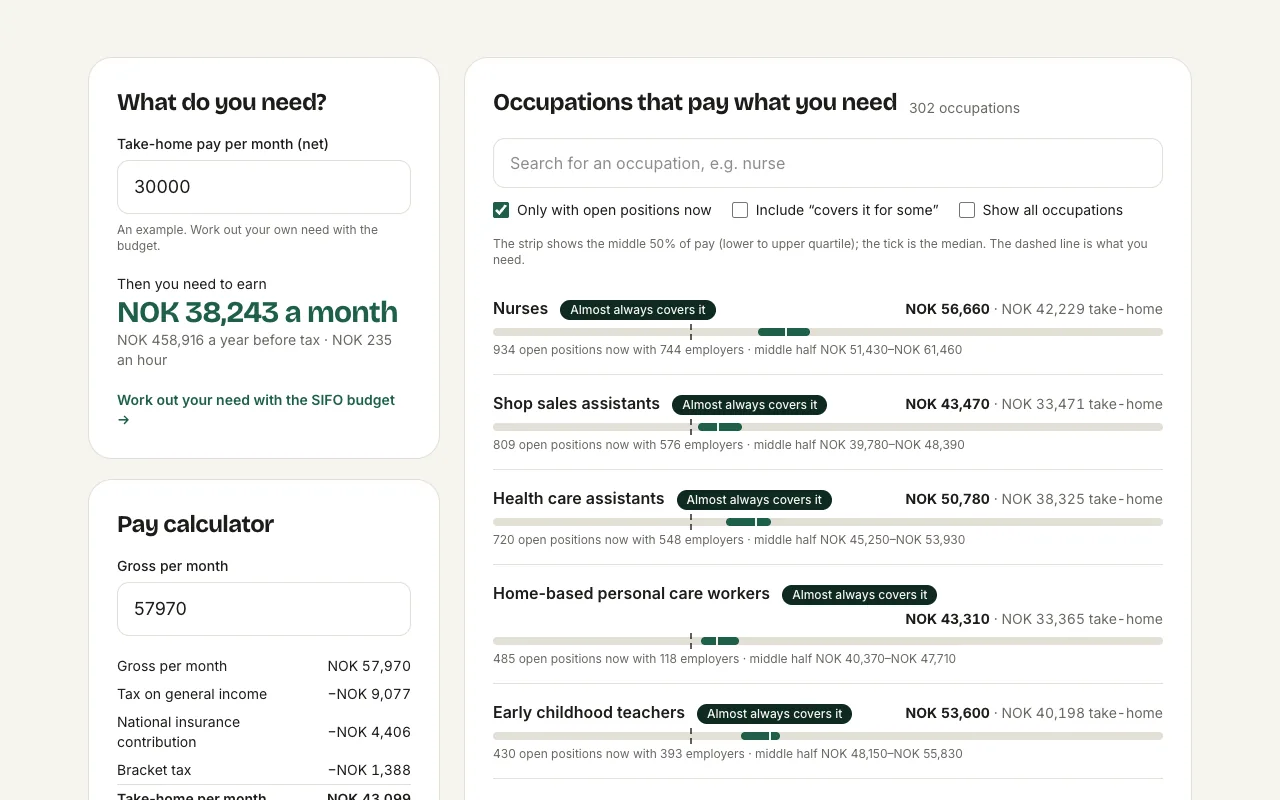
Pay and needs
Enter what you need paid out each month. We convert it to gross pay and show which occupations pay that.
- What do you need paid out each month?
- That means this gross pay before tax.
- Search for a particular occupation.
- The occupations that cover your need – with pay range.
-
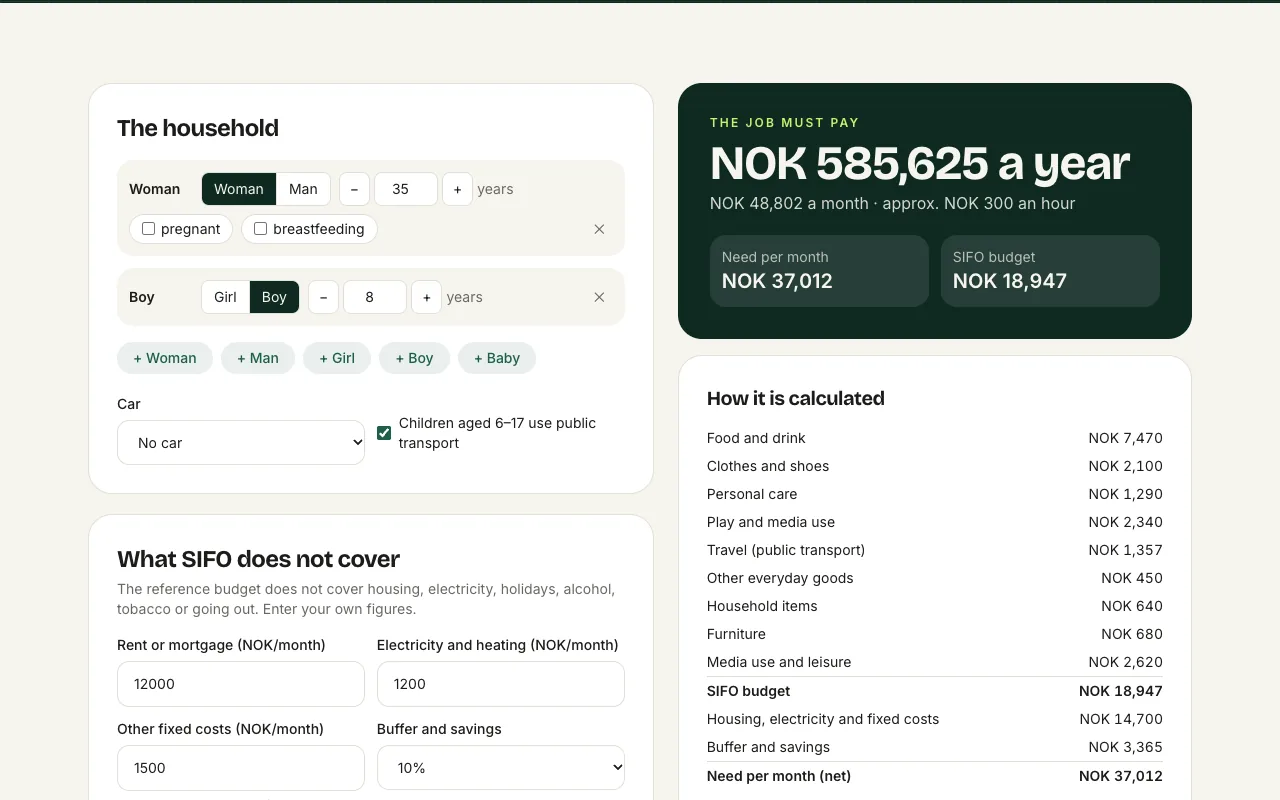
What does the job need to pay?
Build your household, and the SIFO reference budget works out what it costs to live – and what pay you need.
- Add everyone in the household, with age.
- Car, housing and electricity are included.
- The pay the job needs to give, per year, month and hour.
Make your CV
-
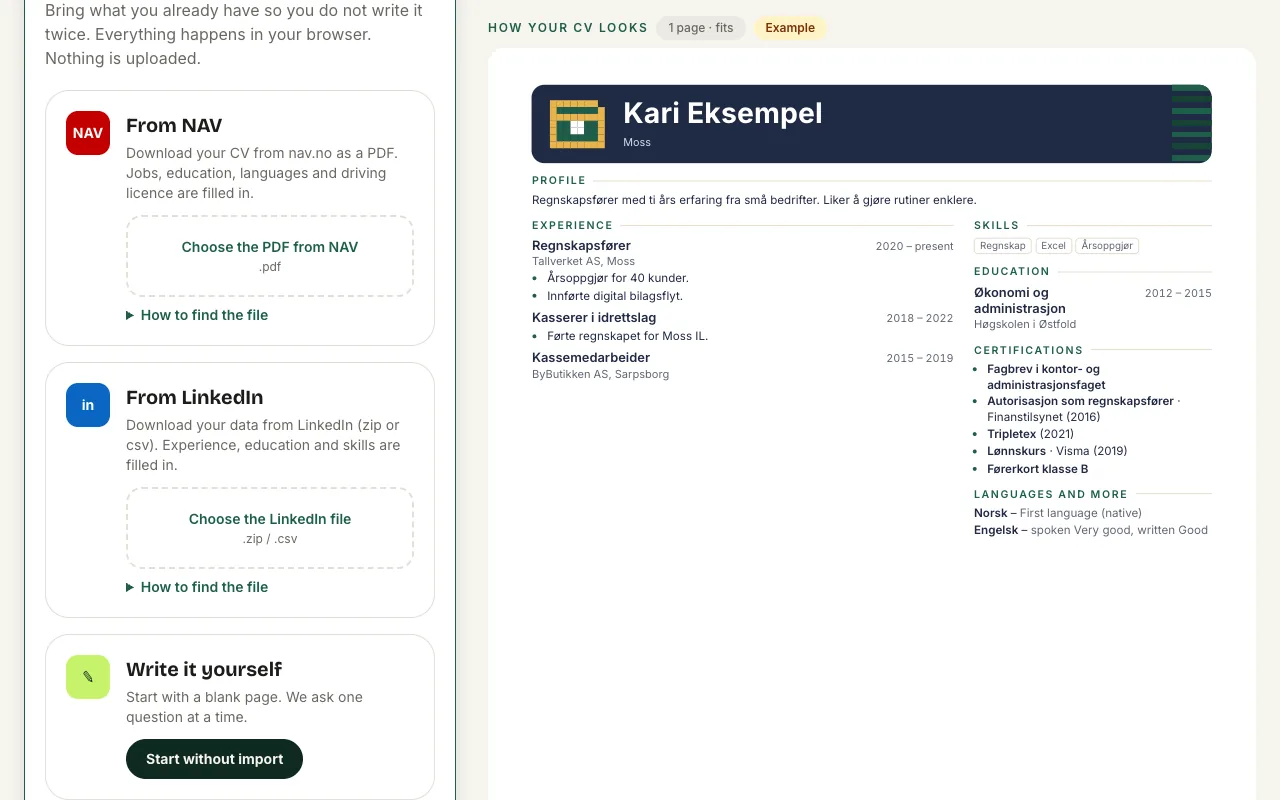
Start the CV builder
Bring what you already have from NAV or LinkedIn, or start with a blank page. Everything happens in your browser.
- Drop the PDF from NAV here.
- Or your LinkedIn export.
- Or write it yourself, one question at a time.
-
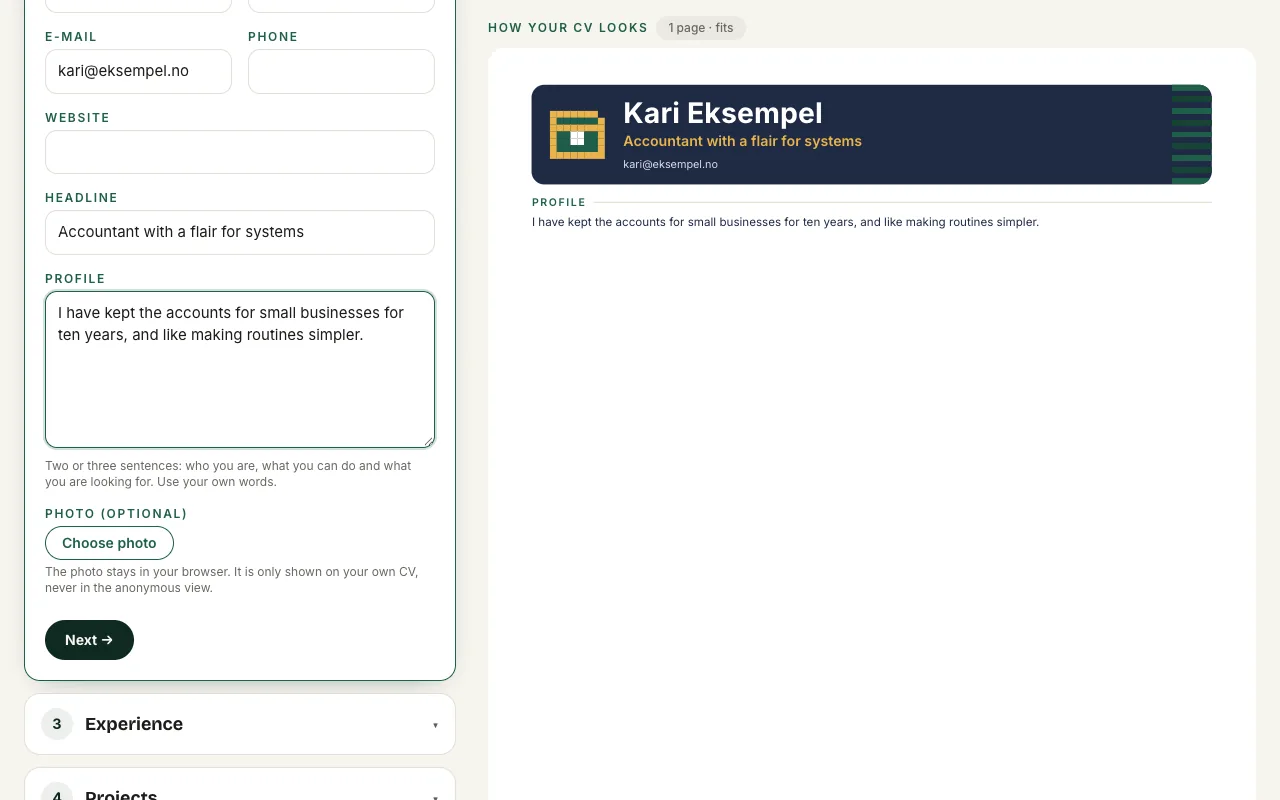
Who are you?
Name, contact details, a headline and a short profile. The CV on the right updates as you type.
- Employers read the headline first.
- The profile: two or three sentences in your own words.
- A photo is optional and only shown on your own CV.
- This is how the CV looks right now.
-
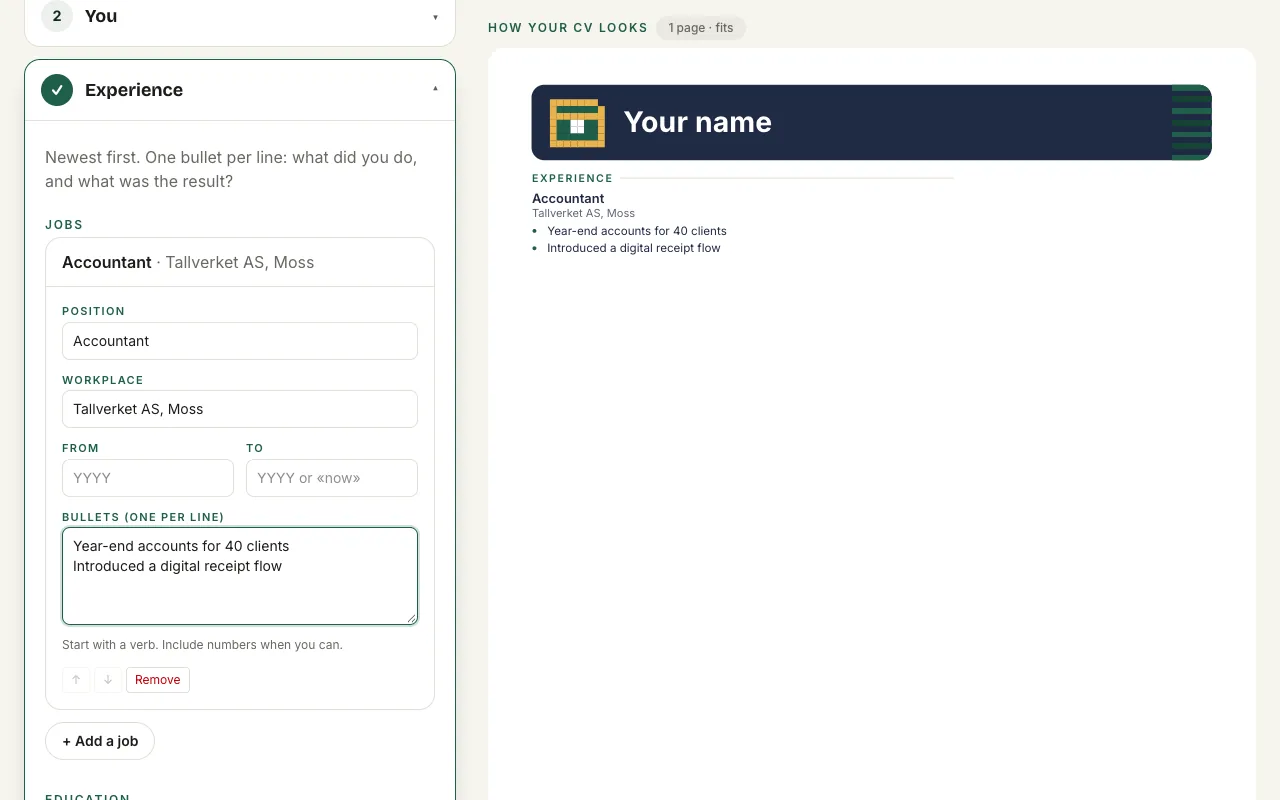
Jobs and projects
One card per job, with bullets you write one per line. Your projects become the cards in the online CV.
- Position and workplace.
- Write what you did, one bullet per line.
- Add more jobs.
-
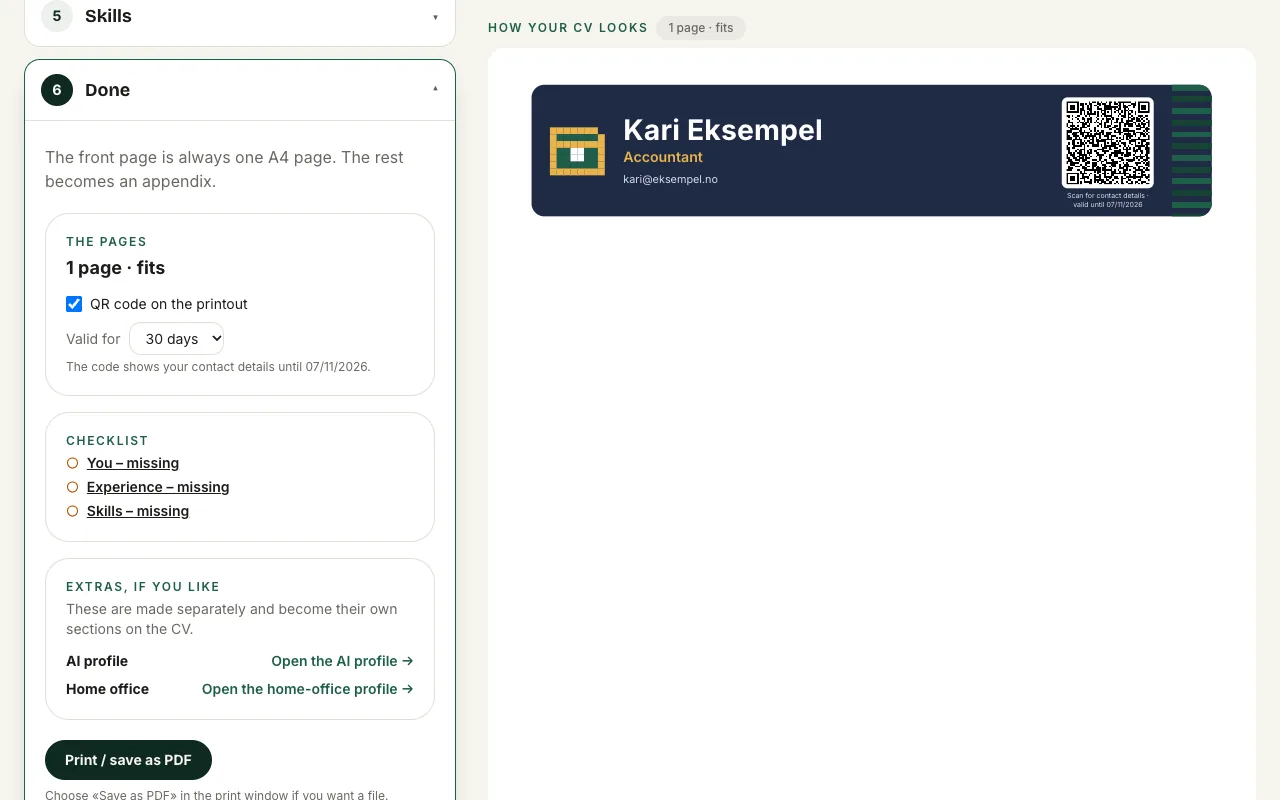
Done: print
The front page is always one A4 page. Turn on the QR code and the printout shows your contact details for as many days as you choose.
- Here you see that the CV fits on one page.
- A QR code on the printout, valid for 14 to 90 days.
- Print or save as PDF.
-
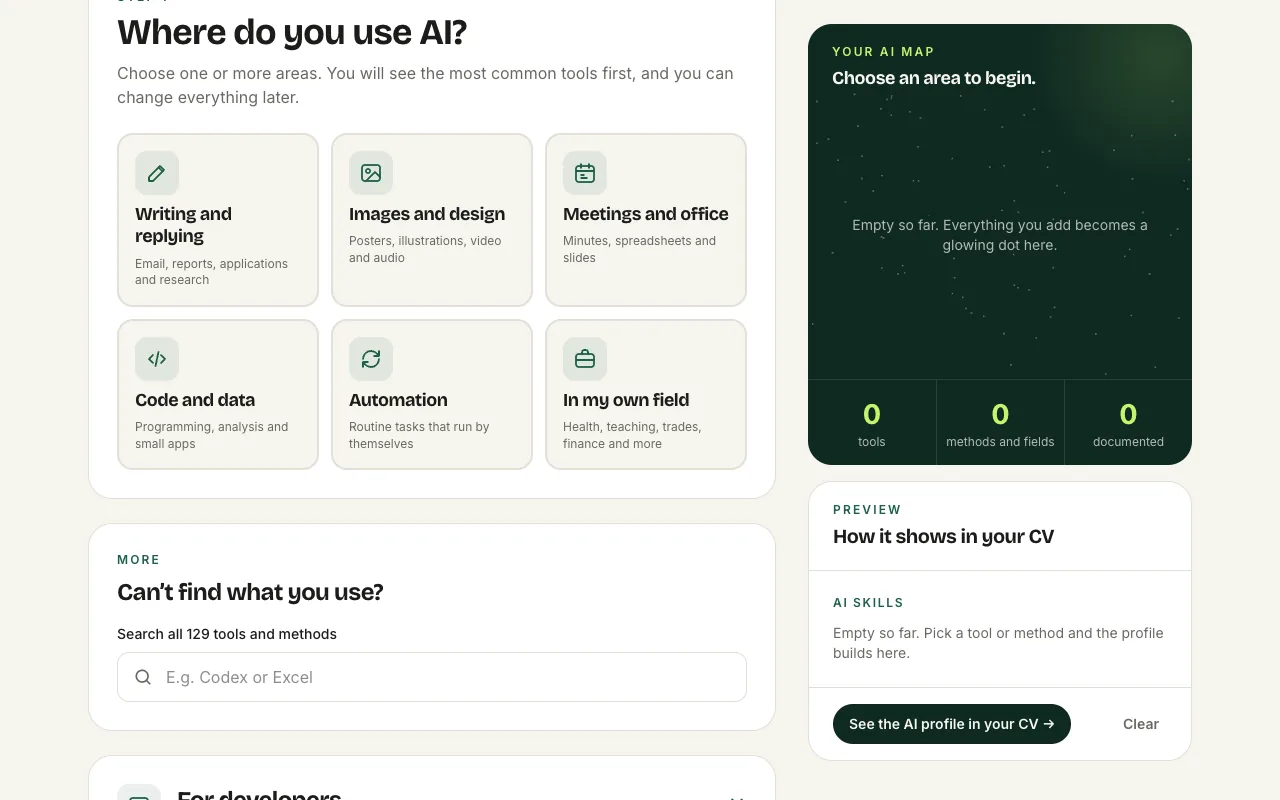
The AI profile
Show which AI tools and methods you use, how well – and what you have achieved. It becomes its own section on your CV.
- Start with where you use AI.
- Also for non-technical people: AI in your field.
- Or search 129 tools and methods.
-
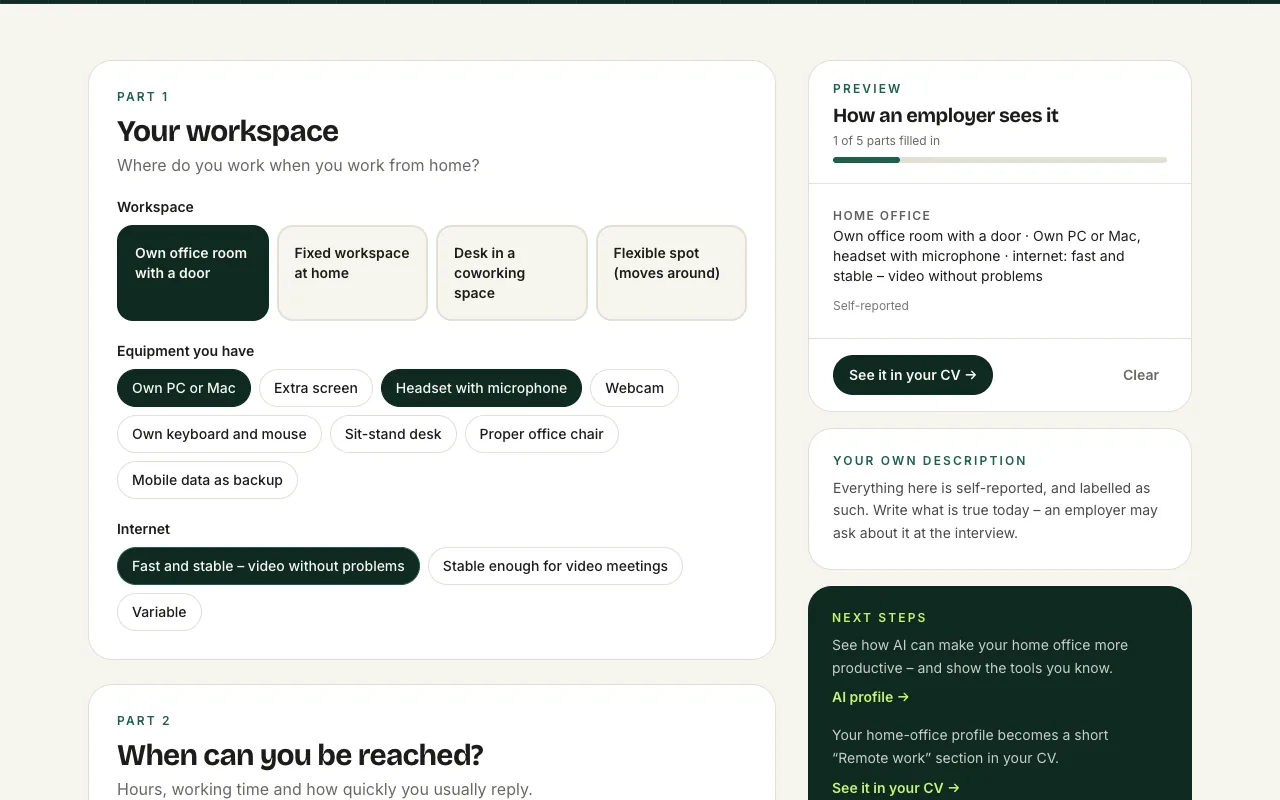
The home-office profile
Show that you are ready to work from home: workspace, equipment, hours, tools and habits. What you choose shows straight away.
- Where do you work from home?
- The equipment you have.
- How the employer sees it.
-
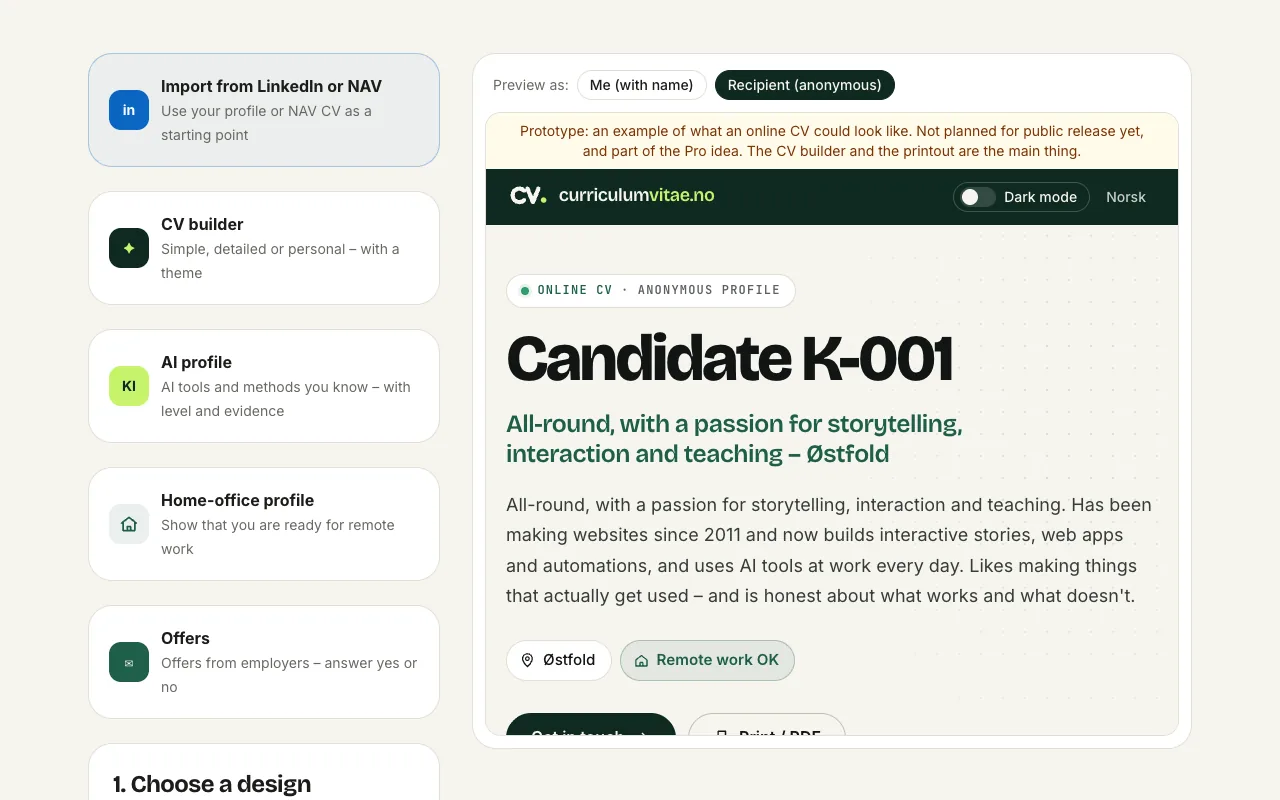
My CV
Here you see the CV as you see it – and as the recipient sees it.
- See the CV as the recipient: without name and contact details.
- Preview of the anonymous online CV.
-
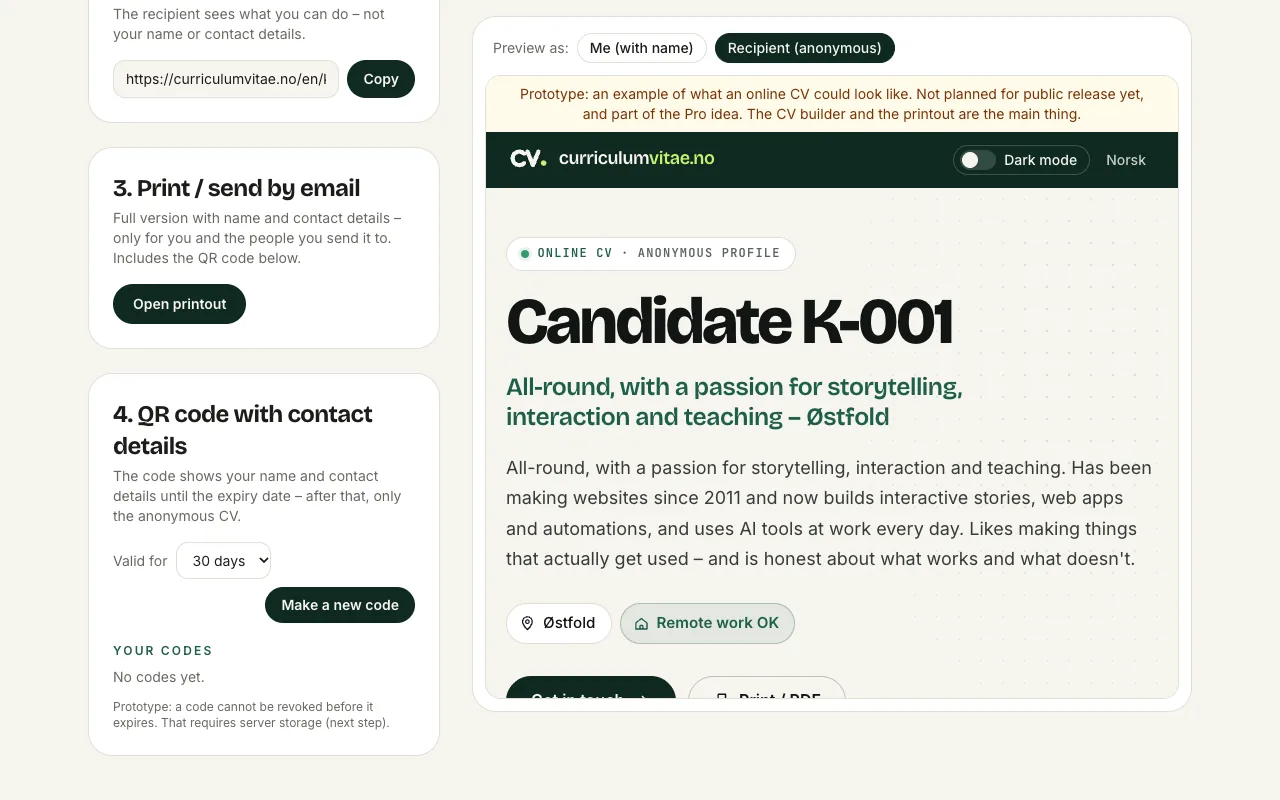
Sharing and printing
Share an anonymous link, or print with your name. The QR code on the printout shows your contact details only for as long as you choose (14–90 days).
- The share link shows what you can do – not who you are.
- Printout or PDF with name, contact details and QR code.
-
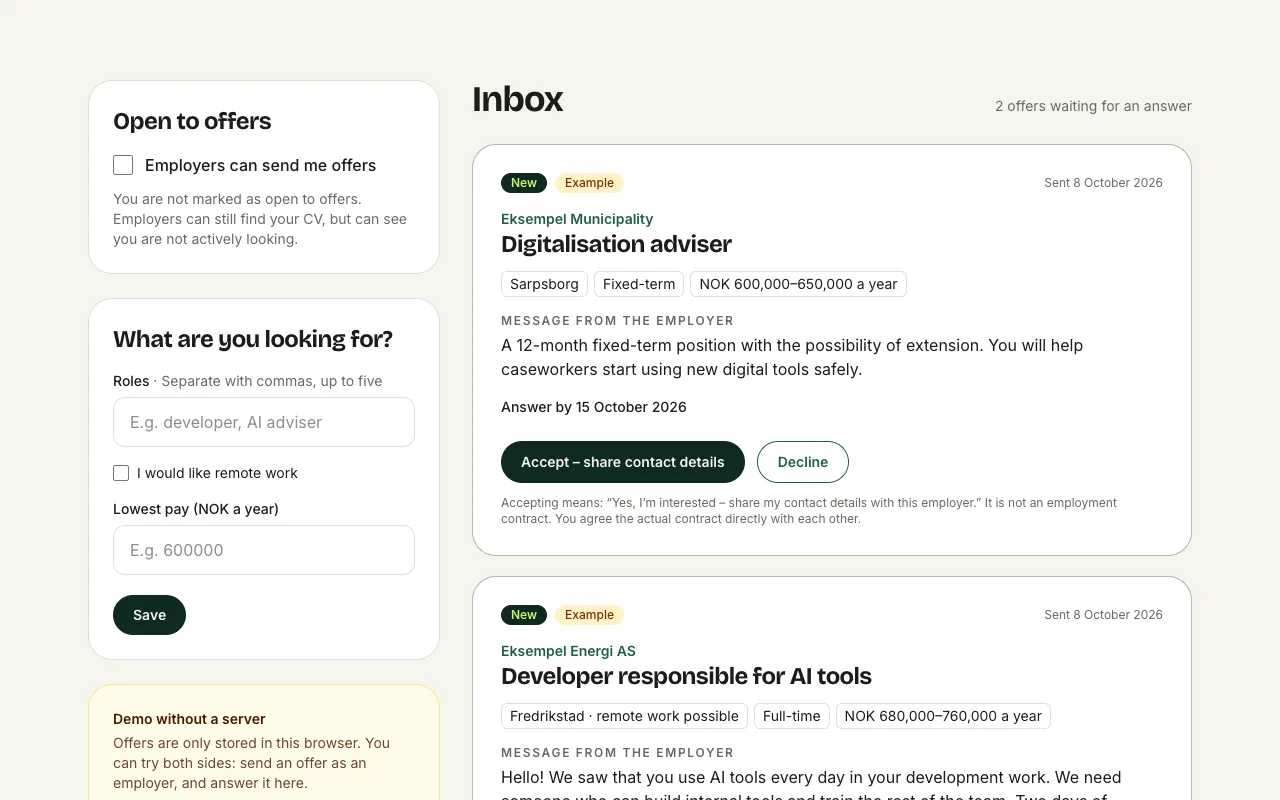
Offers from employers
If you are open to offers, employers can send you one. You answer yes or no. Yes means you share contact details – the employment contract you agree between you.
- Switch on "Open to offers".
- An offer with role, place and pay.
- Say yes – and share contact details – or no.
-
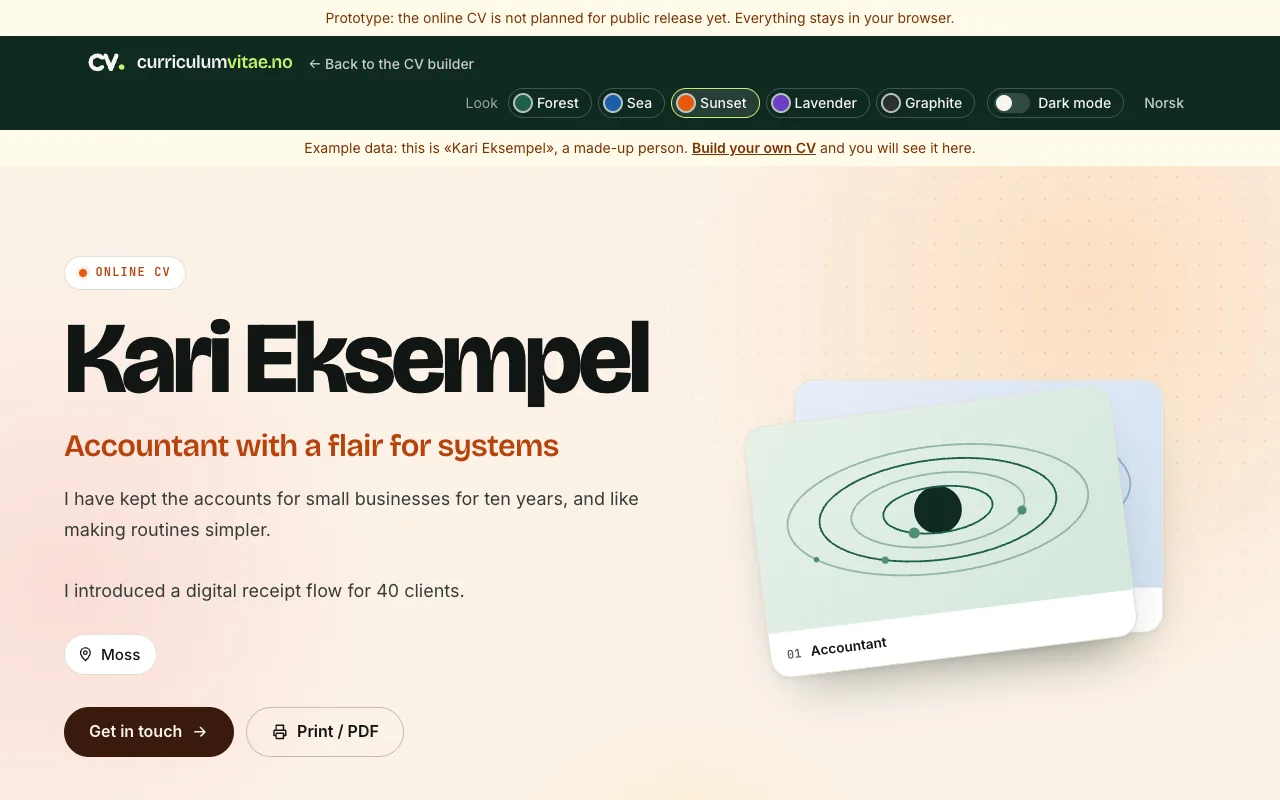
Your online CV
The same CV as a living web page. Pick a look, flip through the cards and switch to dark mode. This is a prototype.
- Five looks, each with a light and a dark version.
- Click the cards to flip through them.
- Dark mode.
-
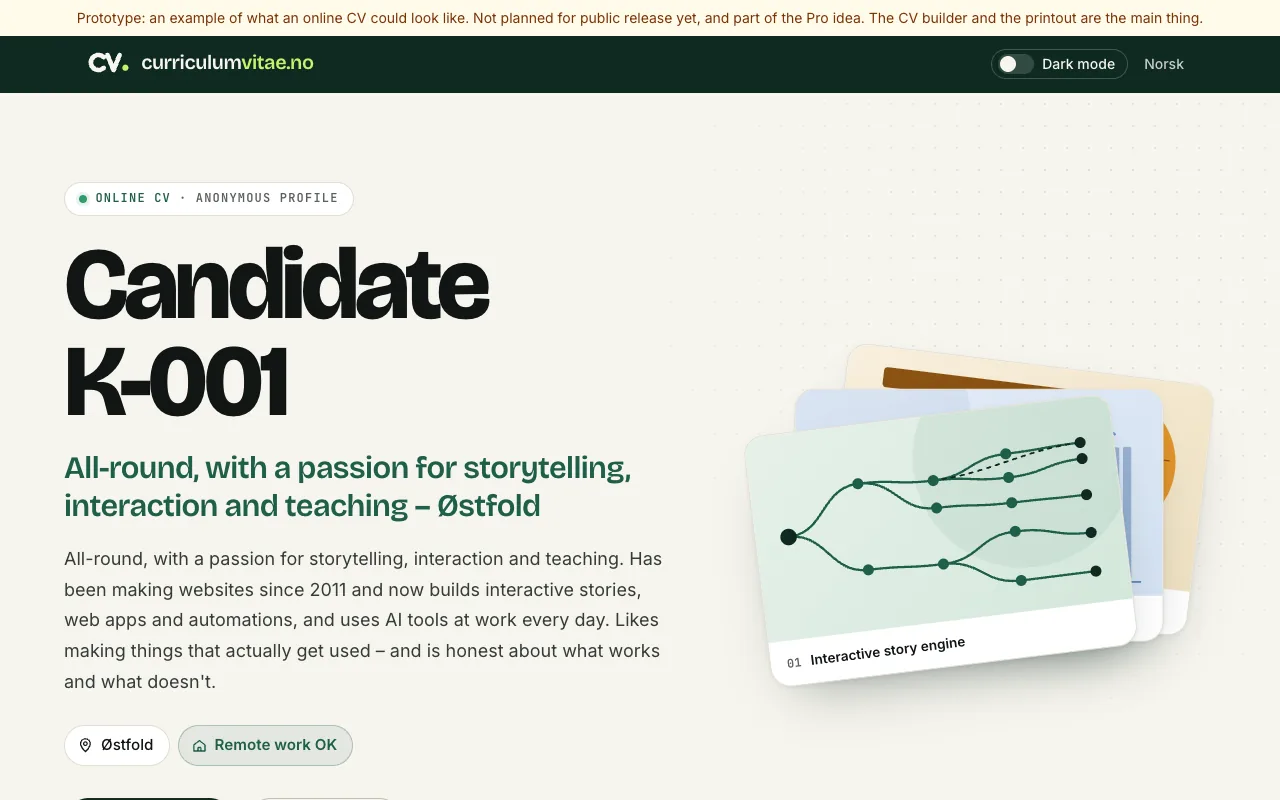
The anonymous online CV
The recipient sees the CV as a web page: projects in the centre, anonymous until you decide otherwise.
- Visitors choose light or dark mode.
- A candidate number instead of a name.
- Employers get in touch from here.
-
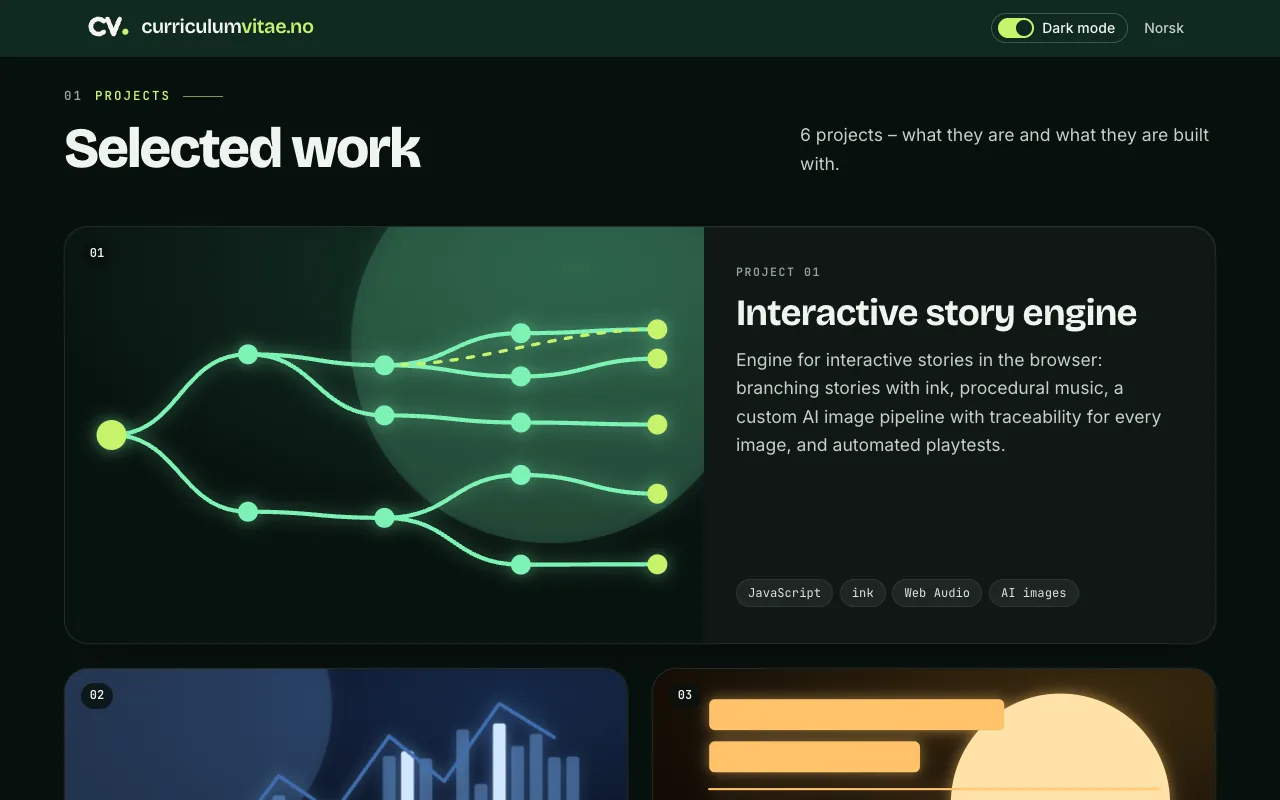
Dark mode
The same CV in dark mode – with depth and motion. Light mode is calmer and is always used for printing.
- Switch back at any time.
- Projects are the first thing employers see.
- Every project gets its own cover.
For employers
-
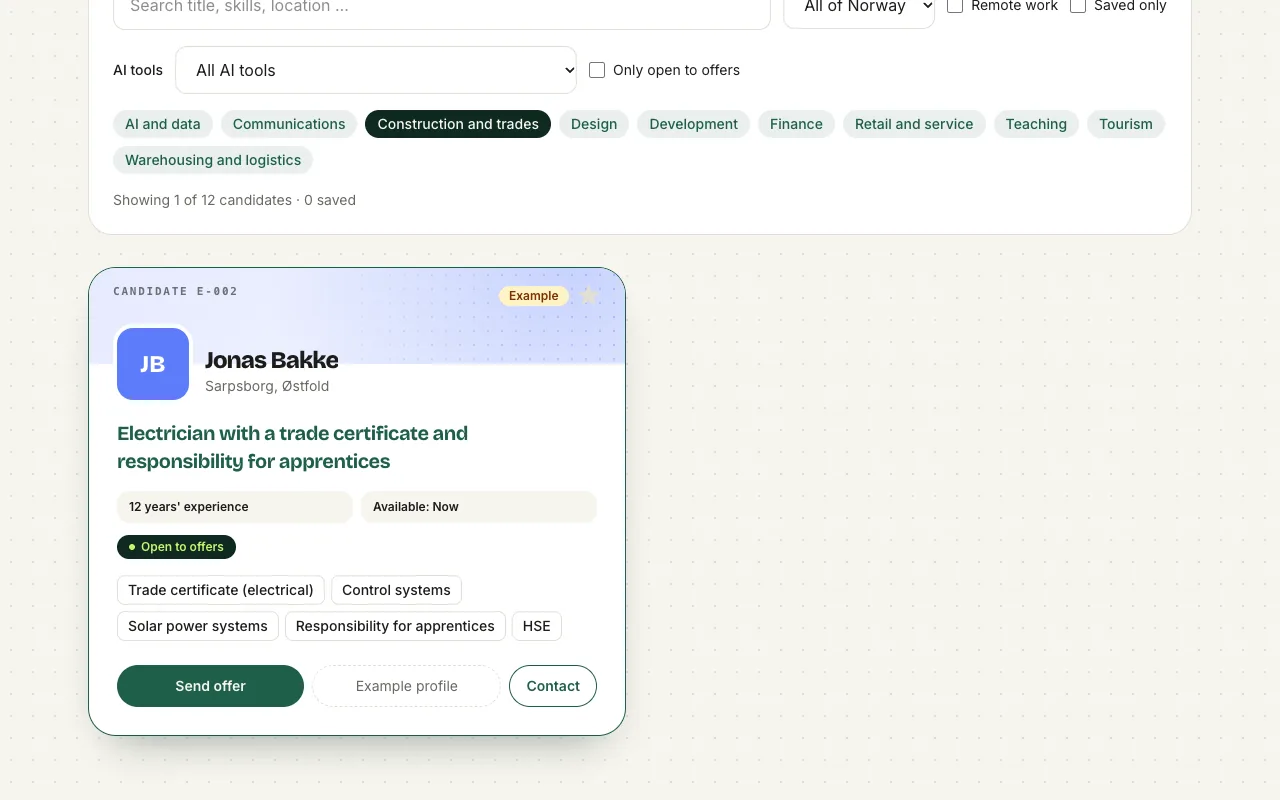
Enterprise – for employers (prototype)
Employers browse candidates as cards and filter by field and location. Login and payment are coming – this is a demo with example profiles.
- Search titles, skills and location.
- Filter by field.
- Contact the candidate – they decide whether to reply.
-
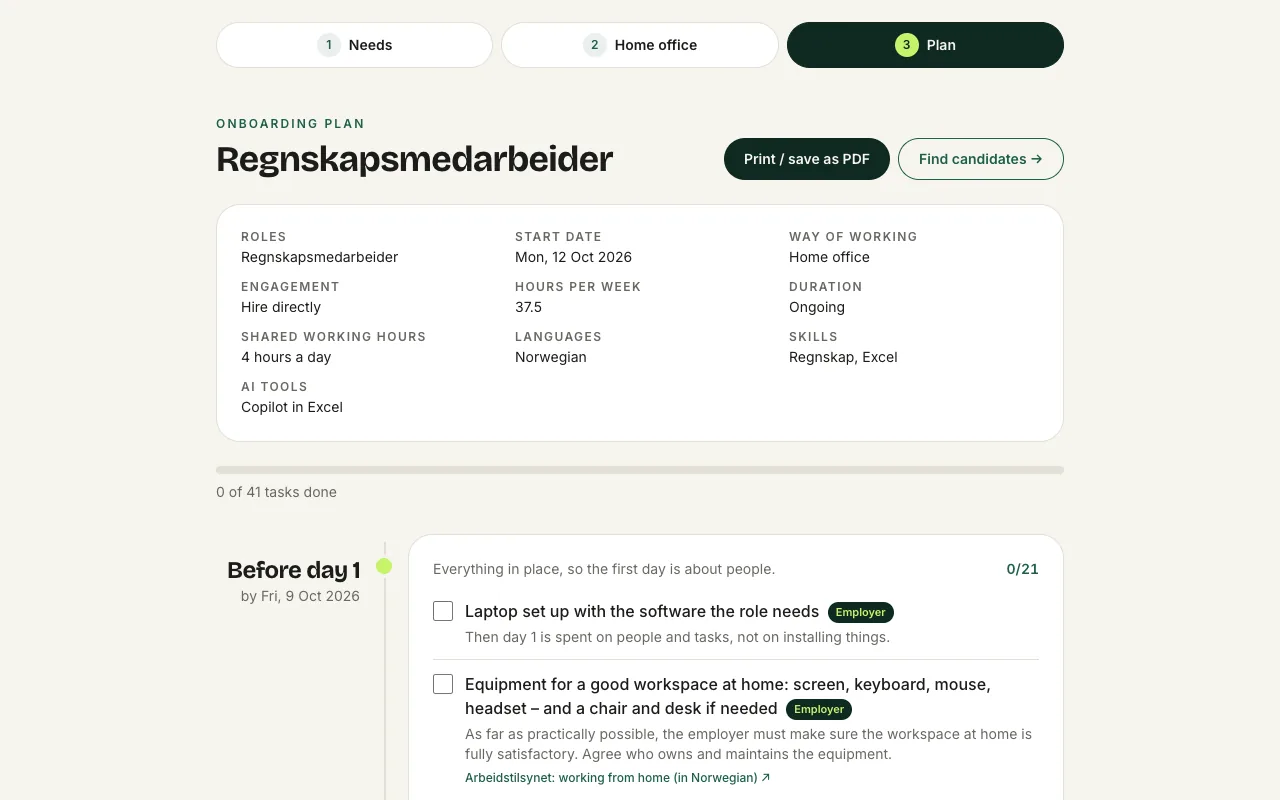
Onboarding plan for businesses
The business describes the need and the home office, and gets a dated plan for the first 90 days – with the home-office agreement in place.
- The role the plan is for.
- The needs, in one place.
- Tasks with date and owner.
- Print or save as PDF.